Duet
Duet
Disclaimers
This tool is NOT a DAW.
Some keyboards have a limitation called: "keyboard ghosting" which prevents certain key combinations to be processed at the same time. This can affect the usage of Duet. There are anti-gosting keyboards that avoid this issue. There are online sites to test the keyboard, just search: "keyboard ghosting". For instance, "d", "f" and "g" pressed at the same time might fail to produce the three related notes due to keyboard ghosting.
Features
- Play harmony and melody together.
- Use a gamepad to play harmony.
- Visualize how harmony and melody fit together.
- Customizable vibrato.
- Configure the first four harmonics.
Master controls
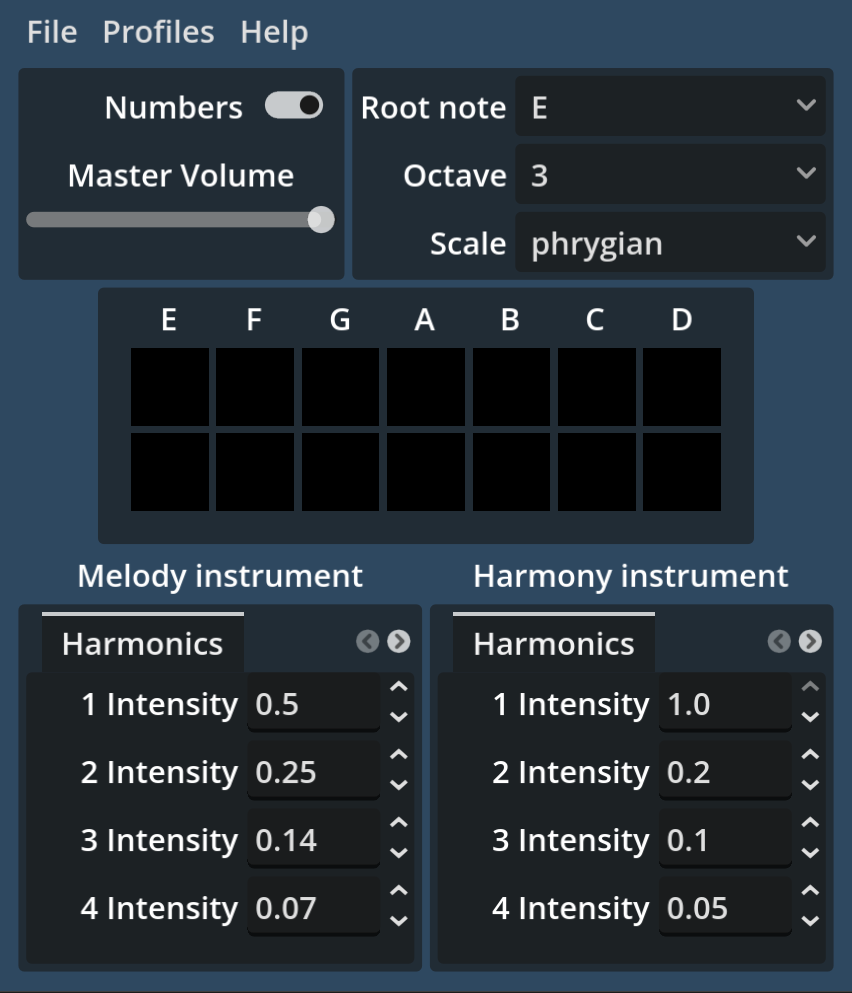
At the top left you will find the Numbers switch and the volume control.
The Numbers switch is used to activate the Gamepad.
By disabling the Numbers you will automatically activate the Gamepad inputs.
Scale
Lock into a scale with the musical config panel at the top right. Select the root note and octave as well as the scale type.
By default it is configured to E phrygian. Why E phrygian? E phrygian has the same notes as C major. But with E being the lowest note, just like a classical guitar.
Besides that, the A sits right in the middle of the scale. I find this settings to be ideal for playing in A minor.
After locking the scale you can’t play notes outside the scale.
Mode
There are 2 input modes:
- Numbers on
- Numbers off
Use the Numbers switch on the top left to toggle between the two modes.
Controls with Numbers ON
Use the QWERT for melody and numbers for harmony.
| Key | Note of the selected scale |
|---|---|
| A | First (By default E) |
| S | Second (By default F) |
| D | Third (By default G) |
| F | Fourth (By default A) |
| G | Fifth (By default B) |
| H | Sixth (By default C) |
| J | Seventh (By default D) |
Use Q, W, E, R, T, Y, U to make the same notes one octave lower.
Use Z, X, C, V, B, N, M to make the same notes one octave higher.
| Key | Chord formed from selected scale |
|---|---|
| 1 | First (By default Em) |
| 2 | Second (By default F) |
| 3 | Third (By default G) |
| 4 | Fourth (By default Am) |
| 5 | Fifth (By default Bdim) |
| 6 | Sixth (By default C) |
| 7 | Seventh (By default Dm) |
Controls with Numbers OFF
The keyboard is ONLY for melody. The QWERT keys work the same way as in Numbers ON mode. But the numbers won’t work at all.
With Numbers OFF, harmony is done with the gamepad ONLY.
| Button | Chord formed from selected scale |
|---|---|
| A | First (By default Em) |
| B | Second (By default F) |
| X | Third (By default G) |
| Y | Fourth (By default Am) |
| LB | Fifth (By default Bdim) |
| RB | Sixth (By default C) |
| RT | Seventh (By default Dm) |
Visualization
At the center of the tool there are 2 rows of 7 black squares each. The one above is the harmony row, it will show the harmony notes being played. The row underneath is the melody row, it will show the melody notes being played.
You can see what notes are being played by the labels above the two rows.
This allow you to see how the harmony and melody match.
For example, try ending the phrases on notes that belong to the target chord.
For simplifying visualization, the octaves are folded into the same note squares. In other words, this tool shows only the notes, not the notes octaves.
Co-op
This tool is meant for people to play in duets hence the name.
To play with other decide who will do the harmony and who will do the melody.
The harmony player will use the gamepad. Remember to enable it by switching the Numbers switch on the top left.
Tips
Decide who will lead and who will follow.
If the melody player leads, then start with three chords, the I, the IV and the V. For example, let’s say you are playing in A minor. With the musical config set to E phrygian as in the default. If the melody player is leading, the harmony player should use Am (key: 4), Em (key: 1) and Dm (key: 7). To sound good, follow the lead of the melody player by playing the chord that contains the note he ends the phrases with.
If the harmony player is leading, decide before hand what the progression will be and let the melody player improvise over it.
Important
Use the Numbers switch at the top left to disable numeric input. That way you can use the number keys to configure the instrument values.
The two instrument settings are at the bottom of the tool. Navigate between the tabs to adjust the vibrato, envelope and harmonics.
The synth updates in real time, as soon as you change the settings the notes will show the difference.
Volumes
The relative volumes and number of voices are on the “others” tab.
The voices is the maximum number of voices and it’s used to normalize the synth accordingly. This setting is added for transparency, you should not change the voices. It is there mainly so the volume makes more sense, since the number of voices is the reason why the melody will sound more laud than the harmony.
To adjust the volume between instruments use the volume setting under “others” tab. That way you can make the instruments more even or the melody stand out.
To make they sound equal in volume put the melody volume to 0.33, while keeping the harmony volume at 1. Not to be mistaken with the master volume.
Profiles
You can save your favorite configurations to profiles. By default all profiles are set to the default settings. To customize a profile select which profile you are going to work with in the top bar under Profiles. By default the profile 1 is selected. After selecting the profile do the changes you want to the instruments and musical config (root note and scale type). To save the changes to the profile use File (located at the top bar). There is an option called Save profiles, which will save all profiles to a file named profiles.save. To access this file in the file system click the Open profiles folder, under File. That way you can delete or copy the profiles to use on another machine. Note that this option won’t work on the web, for the web use the “Download profiles” under Profiles.
Finally to restore a profile to the default select the chosen profile and press Restore profile, under File.
Exporting profiles
If you are on the web the “Open profiles folder” won’t work due to security reasons. Use the “Download profiles” under File at the top bar.
If you are on the desktop the “Download profiles” won’t do anything, you can access the folder directly.
Importing profiles on desktop
Go to File, then “Open profiles folder” and paste the file as profiles.save. If Duet is already opened close it and open again.
Changes
This documentation will change if needed.
TODO
- MIDI recording
- Import profiles on web
Download
Click download now to get access to the following files:
Leave a comment
Log in with itch.io to leave a comment.